
How to see your location history on iPhone
An iPhone has no single location history you can scroll through. Significant Locations, under Settings, Privacy & Security, Location Services, System Services, is encrypted and can be turned off or cleared, not browsed. To see where you've been, use the map in the Photos app, or Google Maps Timeline if you turned it on.
There are three places on an iPhone that know where you've been. Only two of them will show you.
1. Significant Locations
Your iPhone learns the places that matter to you, like home and work, so Maps can suggest routes and Calendar can tell you when to leave. To find it:
- Open Settings and tap Privacy & Security.
- Tap Location Services, then System Services.
- Tap Significant Locations & Routes.
Apple keeps this record end-to-end encrypted, so even Apple can't read it. The screen lets you turn it off or clear it. Apple's guide doesn't describe a list of past places you can browse, so don't count on it for remembering a trip. Clearing it removes it from every device signed in to your Apple Account.
2. The map in Photos
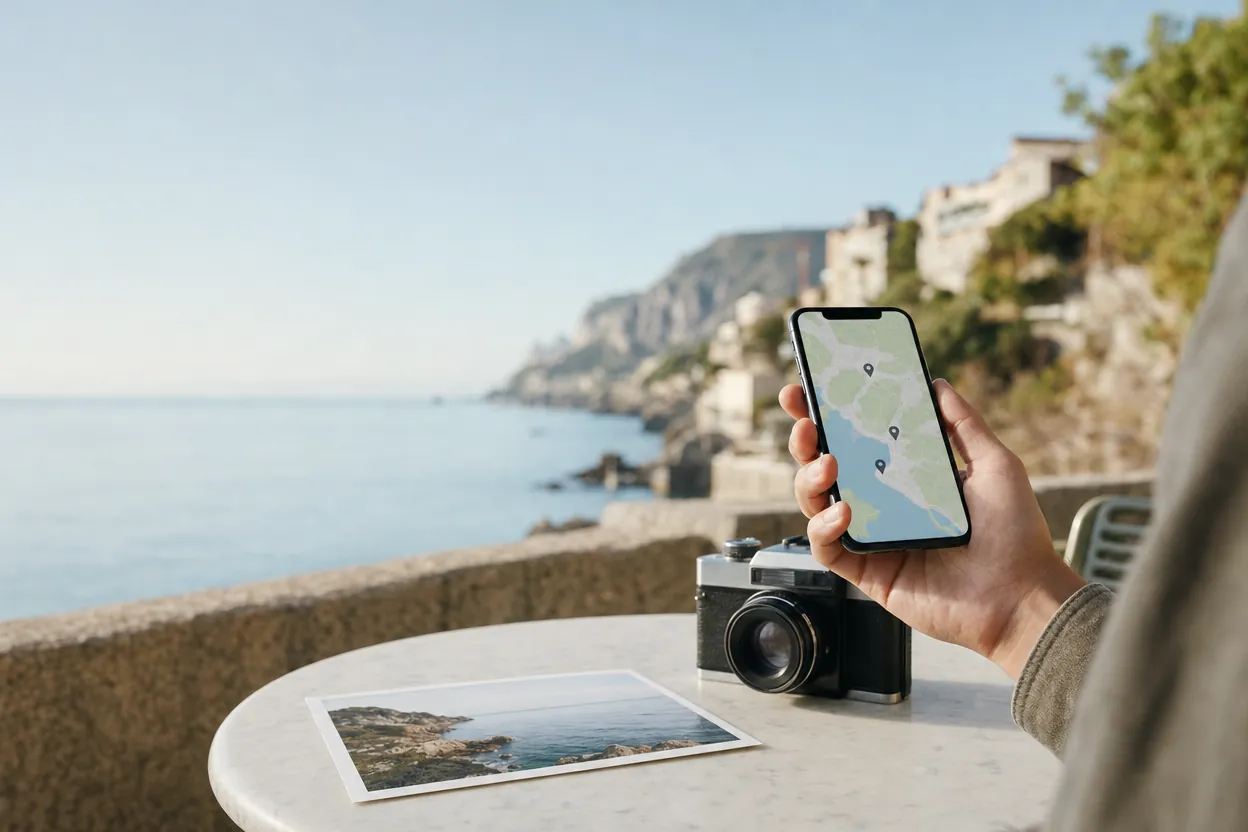
This is the best record most people already have. Every photo with location data sits on a map.
- Open Photos and tap Library.
- Tap the Sort and Filter button, then Show Map.
- Zoom out to see every country, or tap a spot to see the photos from there.
A trip or a single day in Collections has its own map too: open it, tap the More button, then Show Map. Only photos and videos with location data appear, so screenshots and saved images won't.
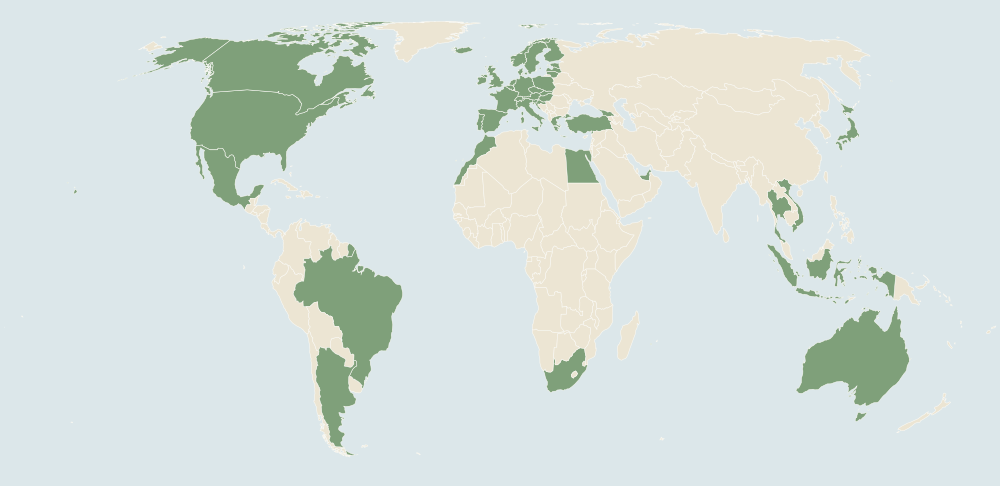
To turn that map into a count of countries, tick them off on the visited countries map.
3. Google Maps Timeline
If you turned on Timeline in the Google Maps app, it has your visits and routes day by day.
- Open the Google Maps app.
- Tap your profile picture, then Your Timeline.
- Pick a day, a place or a trip.
Timeline now lives on your phone rather than on Google's servers, so it only has days from after you turned it on, and a new phone starts empty unless you restore a backup. To keep a copy, export it: how to export your Google Maps Timeline. Then open the file in the Google Timeline viewer to see your countries and trips.
What doesn't keep a history
- Find My shows where your devices are now, not where they've been.
Which to use
- Remembering a trip: the Photos map.
- Exact days in a country, for a visa or tax count: Google Maps Timeline, if you kept it.
- Neither on: your flight and hotel emails. Search your inbox for "booking confirmation".
Questions
Where are Significant Locations on iPhone?
Settings, then Privacy & Security, then Location Services, then System Services, then Significant Locations & Routes.
Can I see a list of places in Significant Locations?
Apple's guide describes turning it off and clearing it, not browsing it, and it's end-to-end encrypted so Apple can't read it. Use the Photos map or Google Maps Timeline to look back at places.
Does clearing Significant Locations delete it on my other devices?
Yes. Apple says it clears your significant locations everywhere you're signed in to the same Apple Account.
Does Find My show where I've been?
No. Find My shows where your devices are now, not a history of where they've been.
Why are some photos missing from the map?
Only photos and videos with location data are on the map. Photos taken with location turned off for the Camera, screenshots and many saved images have none.
Is Google Maps Timeline still available on iPhone?
Yes, in the Google Maps app: tap your profile picture, then Your Timeline. It only has days from after you turned it on.
Your travels, from the photos you already have
Globekeep reads where and when your photos were taken and fills in your map and trips. Your photos stay on your phone.
- Trips from your photosPast trips too, from photos and Google Maps Timeline
- Flights from your inboxBooking emails become flights and stays
- Days in every countrySchengen and 183-day counts, with a warning first
- Private by designYour photos never leave your phone
Only launch news. Unsubscribe any time.