
How to export your Google Maps Timeline
On Android, open the phone's Settings, then Location, Location services, Timeline, and tap Export Timeline data. On iPhone, open Google Maps, tap your profile picture, then Settings, Location & Privacy, and Export Timeline data. Android saves Timeline.json; iPhone saves location-history.json.
On Android
- Open the phone's Settings app (not Google Maps).
- Tap Location, then Location services, then Timeline.
- Under Timeline, tap Export Timeline data.
- Tap Continue.
- Choose where to save it, such as Downloads or Drive.
- Tap Save. A notice says “Export complete” when it's done.
The file is called Timeline.json.
On iPhone
- Open the Google Maps app.
- Tap your profile picture, then Settings.
- Tap Location & Privacy.
- Tap Export Timeline data.
- On the share sheet, tap Save to Files and pick a folder.
- Tap Save at the top right.
The file is called location-history.json.
Open the file
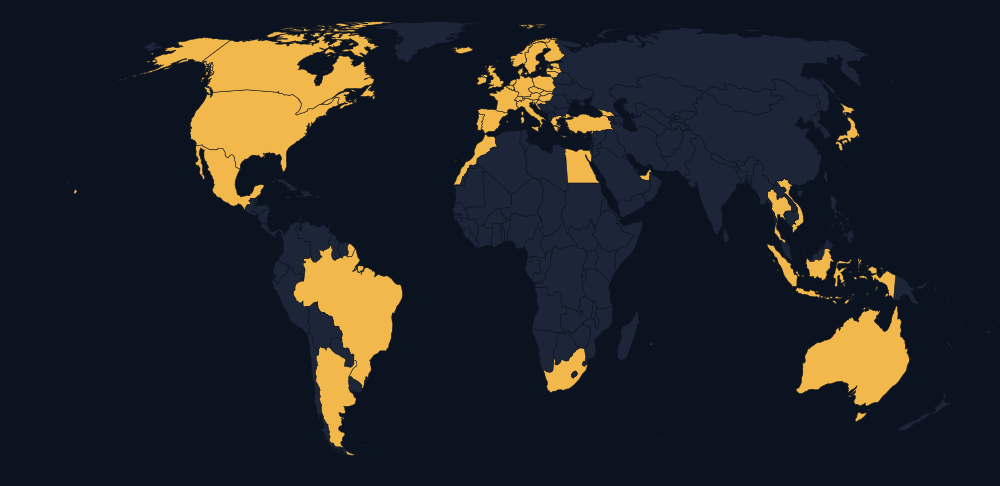
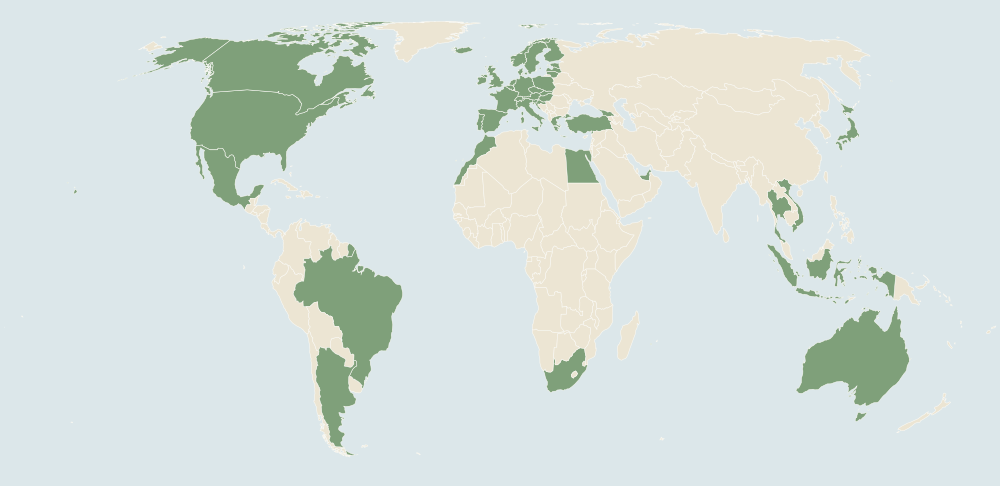
The Google Timeline viewer reads either file in your browser and shows the countries you've been to, the days you spent in each and your trips. Nothing is uploaded.
If Export Timeline data isn't there
Timeline has to be turned on, and your Google Maps app has to be recent enough to have it: version 11.106 or later on Android, 6.93 or later on iPhone. Timeline isn't available on Android Go phones.
Each phone has its own Timeline
Google now keeps Timeline on the phone that recorded it, not in your account on the web. An export holds only what that phone saved, so export from each phone you used. To carry history to a new phone, turn on Timeline backup on the old one, then import it on the new one from the backup screen in Your Timeline.
History from an old Google Takeout
If you downloaded a Google Takeout archive before Timeline moved to the phone, it still holds your older history: Records.json with every location reading, and a Semantic Location History folder with one file per month. The viewer opens those too.
What's in each file
| File | Comes from | What it holds |
|---|---|---|
| Timeline.json | Android export | Visits, routes with path points, and raw location readings |
| location-history.json | iPhone export | Visits, routes and path points |
| Records.json | An old Google Takeout | Every location reading, often for many years |
| Semantic Location History | An old Google Takeout | One file a month, with place names |
The new exports keep times in the time zone you were in, so days line up with your calendar. They don't carry place names or photos.
Keep a copy before you change phones
If auto-delete is on, Timeline older than 3, 18 or 36 months is removed for good. Export before you turn it on, reset your phone or remove Google Maps, because those delete the Timeline kept on the phone.
Questions
Can I export Google Maps Timeline from a computer?
No. Timeline is now kept on your phone, not in your Google Account on the web, so the export has to be made on the phone. Save the file to Files, Drive or email it to yourself to open it on a computer.
Can I still get my Timeline from Google Takeout?
Takeout no longer holds new Timeline data. If you downloaded a Takeout archive before Timeline moved to your phone, its Records.json and Semantic Location History files still hold your old history.
Why don't I see Export Timeline data?
Timeline has to be on, in a Google Maps app that has it: version 11.106 or later on Android and 6.93 or later on iPhone. Timeline isn't available on Android Go phones.
Does one export cover all my phones?
No. Each phone keeps its own Timeline, so an export holds only what that phone saved. Export from each phone you used, or move history to a new phone with Timeline backup.
Is the Timeline file private?
It's a plain file that lists where you've been and when. Keep it somewhere only you can open, and only open it in tools that read it without uploading it.
How do I open the Timeline file?
Open it in the Google Timeline viewer on this site. It reads the file in your browser and shows your countries, days per country and trips, without uploading anything.
Never export again
Globekeep keeps your countries and days counted as you travel, from your photos and location.
- Trips from your photosPast trips too, from photos and Google Maps Timeline
- Flights from your inboxBooking emails become flights and stays
- Days in every countrySchengen and 183-day counts, with a warning first
- Private by designYour photos never leave your phone
Only launch news. Unsubscribe any time.